
How to Use GPT Image 2.6 on Oraclip: Images, GIFs and SVGs
Choose the right GPT Image 2.6 workflow on Oraclip, review credits, generate, download, and understand text-to-GIF and traced SVG limitations.
 Oraclip Team
To use GPT Image 2.6 on Oraclip, first decide whether you need a still image, a short animated GIF, or a traced SVG logo. Those are different workflows with different outputs. The GPT Image 2.6 page introduces the model in the general image-generation experience; the dedicated GIF and SVG workbenches make their narrower purposes and credit quotes explicit.
This guide explains how to choose the right entry point, prepare a request, sign in, review credits, and check the downloaded result. It describes the integration available on November 6, 2026, rather than assuming that every feature in a model announcement is already a button on Oraclip.
Choose an output before writing the prompt
The quickest way to waste a request is to ask one workflow for a file type it does not deliver. Use this decision table before you start:
| What you need | Where to start | What to check |
|---|---|---|
| A still image or illustration | GPT Image 2.6 | The active image-generation controls and the quote for the chosen request |
| A short original character loop | GPT Image 2.6 GIF generator | Text-to-GIF is selected; the quoted charge is for one GIF |
| A still logo-style symbol as paths | AI SVG logo generator | The output is PNG-to-SVG tracing, not native SVG generation |
| A personalized animation from an uploaded photo in the GIF workbench | Not currently available there | Photo-to-GIF is marked coming soon |
| A pack of reaction GIFs | Not currently available | The tools directory has a coming-soon card, not a live reaction generator |
The tools directory is useful for discovering available tools, but a coming-soon card is not a completed workflow. Signing in or purchasing credits does not unlock a page that has not shipped.
Understand what comes from OpenAI and what comes from Oraclip
OpenAI's Images 2.6 announcement describes the model family and capabilities such as GIF creation, editing, and SVG exports. That is the primary source for model-level claims. It is not a specification for every third-party interface that uses the model.
Oraclip's current dedicated GIF and logo workbenches use a KIE-backed Economy integration. The GIF tool requests an animated GIF from text. The SVG tool requests a PNG and then traces it with vtracer on the server. The latter should not be described as native SVG generation, even though the final downloaded file has an SVG extension.
You do not need to supply your own provider API key to use these hosted workbenches. You sign in to Oraclip and use the site's credit system. A ChatGPT subscription, an OpenAI API account, and an Oraclip subscription are separate products; do not assume that paying for one funds another.
Prepare a request that matches the selected tool
For a still image, think about the composition
Decide the subject, setting, intended use, and important constraints. A product illustration, an editorial scene, and a character reference have different requirements. Check the controls currently shown in the general image experience rather than borrowing settings from an unrelated provider tutorial.
Keep the first request focused enough to evaluate. If a composition has six subjects, extensive text, a complex background, and several different styles, it becomes harder to identify the cause of a disappointing result. Write down what matters most before spending credits on another variation.
For a GIF, describe a repeatable action
A useful GIF request has a stable subject and a motion that can return to its starting state: a wave, a blink, a gentle hover, or a small sway. Add fixed framing and a simple background when continuity matters. Do not write a multi-scene story if your goal is a short loop.
The live workbench requests nine frames at 200 milliseconds per frame. Those are current tool settings, not editable controls on this page. For a detailed prompting and review checklist, read how to make GIFs with GPT Image 2.6.
For an SVG, describe traceable shapes
Use solid colours, clear negative space, a strong silhouette, and limited detail. Avoid photographic textures and soft lighting if your goal is an editable logo-style symbol. Ask for a mark without lettering when you plan to add properly licensed type later.
Remember the actual pipeline: description, generated PNG, traced paths. A tracing step preserves the source image's visible boundaries; it does not fix poor anatomy, uneven symmetry, confusing overlaps, or misspelled text. The PNG-to-SVG logo guide explains how to inspect the vector result.
Sign in and review the quote before submitting
The examples are public, so you can inspect them before creating an account or spending credits. Creating a new output requires sign-in and paid credits. Use your own account through the site's normal sign-in flow; never send a password or API key in a generation prompt.
As checked on November 6, 2026, the dedicated GIF tool quotes 40 site credits and the traced SVG tool quotes 50 site credits. The quote shown by the current tool is the figure to review before submission. The general image experience can have a different quote depending on its selected workflow; do not assume every GPT Image 2.6 request has the same charge.
Credits are not a universal cash unit. Subscription plans and packs can have different effective prices per credit, and promotional pricing can change. Check current pricing if you need to choose a plan. Do not interpret a provider's wholesale cost as the price an Oraclip customer pays.
If sign-in is incomplete or your balance is insufficient, resolve that before expecting a generation to run. Repeatedly clicking the submit button is not a way to bypass an account or billing requirement. Keep any error message so support can distinguish an authentication problem from a generation problem.
Submit once, then follow the existing job
After submitting, the workbench starts a task and shows its progress. A slow response does not prove that nothing happened. Avoid opening multiple tabs and submitting the same prompt repeatedly, because those can become separate paid requests rather than retries of one job.
Keep the tool open while it works. If you return later, inspect the account's library for an existing result before generating again. Save the prompt and the task context if you need support, but do not share credentials, session cookies, or private images publicly.
Completion means that the tool has a usable result to show, not that the file is perfect for your project. Review it before publishing, sending it to a client, or commissioning another generation. Model output can be visually plausible while still containing details that are wrong for your intended use.
Inspect the actual examples in their original formats
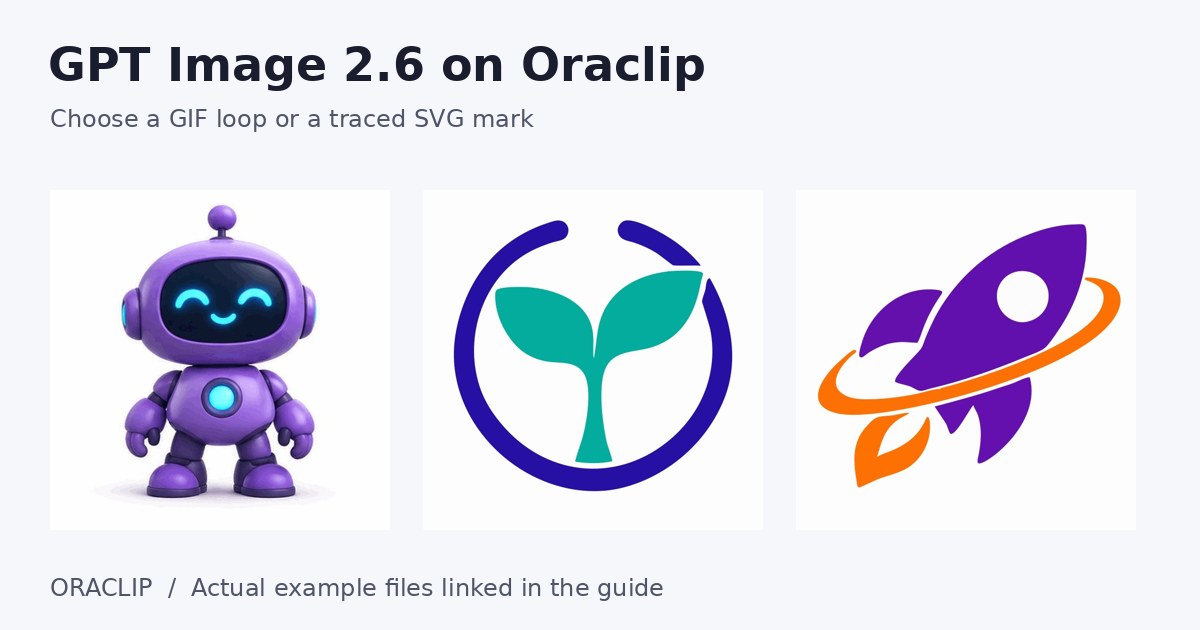
These are real outputs made for the Oraclip workbenches. The blog pictures are static previews; use the original-file links to evaluate animation and paths.
GIF example: the violet robot

Open the actual robot GIF. Watch several cycles. Check the hand shape, face details, framing, and the jump between the final and first frames. This sample is 414 by 414 pixels; a model's requested generation size is not a reason to relabel the delivered file's dimensions.
SVG example: the sprout circle

Open the actual sprout SVG. The file contains traced paths. Inspect the circle's balance, the stem, negative space, and any white background shapes. A browser's smooth rendering does not prove that the geometry is ready for every design or manufacturing workflow.
Download, organize, and test the result
Use the workbench's Download action when the output is ready. Keep the original file and a separate copy for editing. A screenshot of a GIF is a still image; a screenshot of an SVG loses its editable vector geometry. Renaming a PNG to .svg or .gif does not convert it.
Check the downloaded format in the software where it will be used. Messaging apps may present animated files differently. Vector editors can reveal path groups and background regions that are hard to identify in a small browser preview. If you need music, a GIF is not the right delivery format because GIF files do not carry audio tracks.
For work you intend to publish commercially, review the subject matter, resemblance to existing brands, typography rights, and other relevant permissions. A successful generation and a paid credit deduction do not provide automatic trademark clearance or make every possible use appropriate.
Frequently asked questions
Do I need an OpenAI API key or ChatGPT subscription?
Not for these hosted Oraclip workbenches. They use Oraclip sign-in and site credits. Your ChatGPT subscription or API account does not automatically supply Oraclip credits.
Why does the SVG tool say tracing?
Because that is the actual implementation: generate a PNG, decode it, and trace its pixels into SVG paths. There is no native-SVG option in the current logo workbench.
Can I animate my uploaded photo or make a reaction pack?
Not in the current dedicated GIF workbench. Photo-to-GIF is coming soon, and the reaction generator exists only as a coming-soon card in the tools directory. Use text-to-GIF only if an original prompted subject meets your needs.
What should I do if a task is slow?
Follow the existing task and check your library before submitting again. Keep any error and task context for support. Do not assume repeated submissions are free retries or that a slow browser response means no job was created.
How do I know which credit price applies?
Read the quote on the selected tool before generating. The checked dedicated-tool prices are 40 credits for a GIF and 50 for a traced SVG, but the live quote and the actual chosen workflow govern a new request.
Choose the workflow, then judge the file
Start with the intended deliverable, not a list of every capability mentioned in a model announcement. Use the GIF workbench for a short original text-driven loop and the traced SVG workbench for a still mark you can inspect as paths. Keep the prompt focused, review the credit quote, and test the actual downloaded file before making it part of a project.