
AI SVG Logo Generator: A Practical PNG-to-SVG Tracing Guide
Use an AI SVG logo generator honestly: generated PNGs traced into paths, three real examples, prompt tips, background checks, and editing limits.
 Oraclip Team
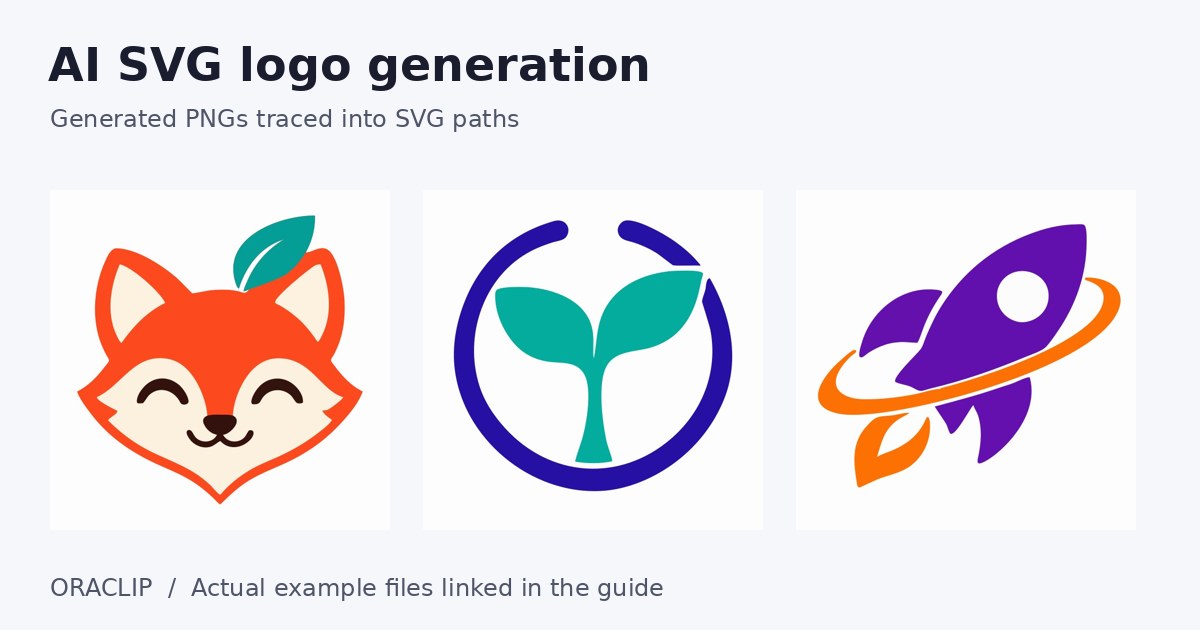
An AI SVG logo generator can describe two very different processes: a model that directly writes vector geometry, or a workflow that generates a raster image and traces it into paths. The Oraclip AI SVG logo generator uses the second approach: GPT Image 2.6 PNG generation followed by PNG-to-SVG tracing. The downloadable file is an SVG, but it is not native SVG output from the model.
That distinction matters when you choose a prompt, inspect the result, or hand the file to a designer. This guide uses three real generated and traced marks to explain what tracing preserves, what it cannot repair, and how to review an SVG before treating it as a finished identity asset.

Open the actual traced fox and leaf SVG. The picture above is a JPEG preview of that vector file, not the original generated PNG and not a claim of native SVG generation.
What happens between your prompt and the SVG download?
The current workflow has three stages:
- You describe a still logo-style mark in the tool.
- The image-generation integration produces a PNG.
- The server decodes the PNG and passes its pixels through a vtracer-based tracing step, producing SVG paths for download.
The tracer follows visible shapes and colour regions. It does not infer your brand strategy, reconstruct a font's original letterforms, or know which paths a human designer would merge. A generated circle with a slightly uneven edge can become an uneven vector circle; changing the file format does not turn it into a mathematically perfect circle.
OpenAI's Images 2.6 announcement describes SVG exports among the model's wider capabilities. Oraclip's current page deliberately uses its PNG-to-SVG tracing workflow instead. There is no native-SVG mode selector on this page. Do not confuse a capability in the announcement with the implementation behind this particular download button.
Write a prompt that is easy to trace
Flat shapes are a better starting point than photographic detail. Ask for a small number of solid colours, clear negative space, a centered mark, and no lettering when you only need a symbol.
A useful starting prompt is:
A flat vector-style icon of an original orange fox head combined with a single green leaf, simple geometric shapes, solid colours, white background, centered, no lettering, no gradients, no shadows, no texture.
“Vector-style” describes the appearance requested from the PNG generator. It does not change that first output into a vector file. The actual conversion still happens later, when the tracer turns the raster's colour boundaries into paths.
Limit colours before you simplify paths
A two- or three-colour mark gives the tracer fewer boundaries to follow. Gradients, soft shadows, noisy paper, and glowing edges can create many small regions or shapes. Even if they look pleasant in a large PNG, they may produce a more cumbersome SVG.
Think about the smallest intended use. A leaf with five interior veins might be attractive on a presentation slide but unreadable as a tiny avatar. Make the concept recognizable through the outer silhouette before you add internal decoration.
Leave real negative space
Ask for visible separation between parts that should remain separate. If a leaf nearly touches a fox's ear, a small raster bridge can become an unwanted joined region after tracing. Review the gap at the intended display size, not just on a zoomed-in canvas.
Do not assume the word “minimal” guarantees simple geometry. Describe what should be absent: no fur texture, no bevel, no drop shadow, no tiny lettering. The instruction gives you a concrete checklist when judging the generated result.
Read the three real examples critically
Fox and leaf: check where shapes meet
The linked fox-and-leaf file contains eight path elements. That count describes this sample; it is not a quality rating or a promise that all similar prompts will produce eight paths. One path can contain multiple subpaths and many curve commands.
Open the actual SVG and inspect the relationship between the fox silhouette and the leaf. Does the leaf read as a deliberate design element at small size? Are gaps wide enough? Would a single-colour version still make sense? These questions matter more than whether the file extension is correct.
Sprout in a circle: check balance and background

Open the actual sprout circle SVG.
This sample contains five path elements. Its prompt combines a teal sprout with an indigo circular shape on a white background. The simple colour relationships make the concept readable without relying on texture.
Inspect the circle and the stem separately. A tracing process can preserve subtle asymmetry from the generated PNG. If exact symmetry is important to your final identity, a designer may choose to redraw the circle and align the stem rather than accepting every traced curve.
Also check the white regions. A white background is not the same as transparent artwork. Do not place the file on a coloured website header and assume that every white shape is automatically removed.
Orbital rocket: check the overlaps

Open the actual orbital rocket SVG.
The orbital rocket sample contains seven path elements. Its challenge is the overlap between the rocket and the orbital ring. Check whether the ring appears to pass consistently in front of and behind the subject. If that visual logic is wrong in the PNG, tracing cannot understand and repair it.
This is a good case for revising the concept rather than merely asking for more detail. A simpler ring, a larger gap, or fewer overlapping parts may create a better mark and a cleaner trace.
A practical SVG inspection checklist
Before using a generated trace in a real project, download the SVG and inspect it in a vector editor you trust.
- Open the actual file: the browser preview is useful, but it does not show your editor's path organization or export behaviour.
- Inspect the viewBox: check that the canvas frames the mark rather than leaving surprising padding or clipping an edge.
- Zoom in and out: vector edges remain scalable, but visual balance and awkward curves can still be wrong.
- Check fills and backgrounds: identify solid white regions, coloured backgrounds, and any holes that should be transparent.
- Review path complexity: unnecessary small shapes can make recolouring and editing inconvenient. A small file is not automatically a good design, and a low path count does not necessarily mean simple curves.
- Try a one-colour treatment: if the concept disappears, decide whether colour is essential or whether the silhouette needs refinement.
- Test actual placements: a favicon, a slide title, an embroidered patch, and a shop sign have different constraints.
Oraclip bounds image decoding and tracing sizes for reliability; this is not an unlimited vectorization service. The generator page is a prompt-to-logo workflow, not a general-purpose upload-any-PNG converter. Keep the original download and an editable working copy before making manual changes.
What tracing does not solve
Typography and editable text
Generated lettering can contain mistakes, and traced lettering is not the original editable font. For a wordmark, a practical workflow is to generate the symbol without text and add properly licensed typography in a design tool. Check spacing, spelling, and font rights separately.
Brand clearance and commercial suitability
A newly generated mark can still resemble an existing identity. Neither a prompt nor an SVG extension proves trademark availability. Avoid asking for a recognizable company's logo with minor changes, and perform appropriate brand and rights checks before adopting a mark commercially.
Fabrication requirements
An SVG that displays correctly in a browser is not necessarily a ready-to-cut or ready-to-machine production file. Overlapping fills, tiny gaps, multiple colours, and the difference between strokes and filled paths can matter to cutting, engraving, embroidery, or print workflows. Check the requirements of the actual equipment and supplier.
Credits and choosing the right output
As checked on November 6, 2026, the traced SVG workbench quotes 50 Oraclip site credits. Read the current quote before submitting. This is a customer credit charge, not a claim about a provider's wholesale API price or a fixed cash price across every subscription.
For motion rather than a still identity mark, use the GPT Image 2.6 GIF generator. If you are deciding between the general image page, GIFs, and traced SVGs, the Oraclip GPT Image 2.6 workflow guide compares their current purposes.
Frequently asked questions
Is this native GPT Image 2.6 SVG output?
No. The current Oraclip logo tool generates a PNG and traces its pixels into SVG paths. The page does not expose a native-SVG generation option.
Can I upload an existing logo PNG to convert it?
Not in this prompt-to-logo workbench. It starts with a written description and a generated PNG. Do not purchase credits expecting an upload control that is not present.
Is the downloaded background guaranteed to be transparent?
No. Our real examples were prompted on white backgrounds, and traced white regions can remain in the SVG. Inspect and edit the actual file if transparency is required.
Can I use the result as my final business logo immediately?
Treat it as a draft for review, not automatic brand clearance. Check similarity to existing marks, typography, path quality, small-size readability, and your intended commercial use. Consult an appropriate professional when the identity has business or legal significance.
Is a traced SVG automatically suitable for a cutting machine?
No. A displayable SVG and a production-ready cut file are different deliverables. Inspect overlaps, closed shapes, fine details, and the machine's import requirements before manufacturing.
Start with a simple mark, then inspect the paths
The strongest PNG-to-SVG workflow begins before the trace: choose an original concept, a limited palette, and clear shapes. Use the resulting SVG as a scalable draft you can inspect and refine. Create a traced SVG logo on Oraclip when the current quote and these limitations match your project.