
How to Make GIFs with GPT Image 2.6: Prompts and Loop Checks
Make GPT Image 2.6 GIFs on Oraclip: text prompts, three real examples, loop checks, downloads, and the current 40-credit quote.
 Oraclip Team
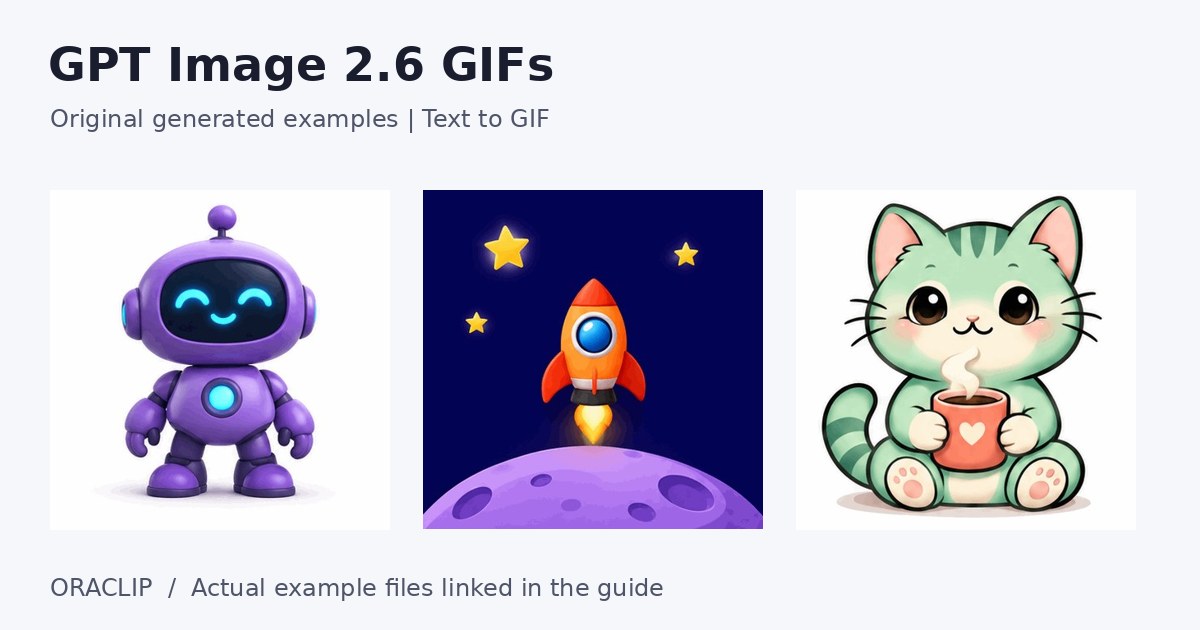
To make GIFs with GPT Image 2.6 on Oraclip, start with a written idea, give one subject one small repeatable action, and review the animated result before downloading it. The current GPT Image 2.6 GIF generator is text-to-GIF: photo-to-GIF is still marked coming soon. This guide explains the prompt structure, the actual sample files, the credit quote, and how to spot a bad loop without spending credits on random rewrites.
The examples below are original outputs generated for Oraclip, not OpenAI announcement images. The pictures are still previews because this blog's image renderer uses static images; the accompanying links open the actual animated GIF files.
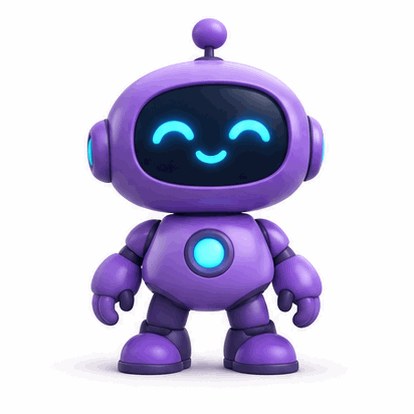
Open the actual waving robot GIF.
How to make GIFs with GPT Image 2.6: the short workflow
- Open the GIF generator and leave Text to GIF selected.
- Describe a subject, one motion, a fixed composition, and a simple background.
- Sign in and check the displayed credit quote before generating. Paid credits are required.
- Submit once. Keep the current job open or return to its progress rather than starting a duplicate because it is taking longer than expected.
- Watch several repetitions. Look at the hand, eyes, silhouette, background, and the transition from the final pose to the first.
- Download the GIF, then test the downloaded file in the app where you intend to share it.
As checked on November 6, 2026, this Oraclip workbench quotes 40 site credits per GIF and requests nine frames at 200 milliseconds per frame. That is a requested 1.8-second cycle. These are the workbench's settings, not a claim that every GPT Image 2.6 integration exposes the same controls or that every request will produce a visually seamless loop. The live quote is authoritative if pricing changes.
Separate the model announcement from the tool you are using
OpenAI's Images 2.6 announcement describes GIF creation, including mascot and character animation. It also describes other API capabilities, such as SVG exports and editing controls. Those broader capabilities should not be confused with the controls available on one particular website.
Oraclip's current GIF page uses its KIE Economy text-generation integration. It does not provide a photo upload field, a frame-count selector, a transparency switch, or a pack of six or nine reaction files. The photo tab explains that support is pending. Do not buy credits expecting a feature labelled coming soon to become available after sign-in.
There is also no useful reason to copy a provider's API parameters into the prompt box. Writing frame_count=64 in prose does not add a hidden setting to the workbench. Spend your words on the visual action that the viewer should understand.
Build a prompt around a returnable action
A practical prompt has six parts:
Subject + small action + stable framing + background + return cue + exclusions.
For example:
A friendly original round violet robot on an ivory background gives a slow little wave, its cyan face light gently pulses, playful polished 3D clay style, centered full body, no logos or text. Keep the camera still and return to the resting pose for a loop.
The important choice is not the adjective “polished.” It is the limited action. A wave can move away from a resting pose and return. A rocket can hover, rise slightly, and settle. A cat can blink and reopen its eyes. Those motions give the generator a manageable beginning and ending.
“Walk through three rooms, pick up a cup, transform into a dragon, and fly away” has a different structure: it is a sequence with an ending, not a short repeating action. Reduce it to one moment before you spend a generation on it. If a shot needs a story, a moving camera, or multiple scenes, consider a video workflow rather than forcing everything into a short GIF.
Keep the camera and the silhouette stable
Add “fixed camera” or “same framing throughout” when the subject's motion matters more than cinematic movement. A camera push can make the final frame larger than the first, producing a visible jump when the animation repeats.
Keep space around waving hands, ears, tails, and antennae. An otherwise good action becomes distracting when an extremity touches the crop. “Centered full body with space around the hands” is more actionable than a long list of competing style references.
Change one variable at a time
If a robot's hand looks wrong but the character and lighting work, change the action to a gentle body sway before changing the entire design. If the background flickers, simplify the background before adding more detail to the subject. Keep a short note of the prompt and the problem you are trying to fix.
This is not a guarantee that the next result will preserve every detail. It is a way to make a paid revision answer a specific question. Clicking Generate again without deciding what should change gives you another sample, not a controlled test.
Three real examples and what they teach
Waving violet robot: one clear gesture
The robot sample pairs a soft ivory background with a single character and a small wave. The bright face is easy to recognize at chat size. Its prompt avoids lettering, so there is no caption or logo that needs to remain readable while moving.
When reviewing a similar result, watch whether the hand changes shape, whether the face light flashes abruptly, and whether the robot returns to a compatible pose. A nice still frame alone cannot answer those questions. Open the actual GIF rather than judging only the preview picture.
Floating orange rocket: motion without a scene change

Watch the actual floating rocket GIF.
The rocket prompt asks for a tiny orange toy rocket that hovers and gently bobs above a lilac planet, with small stars against an indigo background. Hovering is easier to repeat conceptually than launching out of frame: the rocket remains available for the next cycle.
Inspect the planet's edge as well as the rocket. A subject can move convincingly while the background drifts. Also notice that this actual file is 414 by 413 pixels. The square composition requested by a tool is not a reason to advertise a measured sample as a 1024-pixel download.
Blinking mint cat: keep secondary motion secondary

Watch the actual blinking cat GIF.
The cat hugs a mug while steam sways and its eyes blink. This combines a main expressive action with a small secondary movement. It is still a limited scene: the cat is not walking, drinking, turning around, and changing outfits at once.
At small sizes, inspect the eyes and the handle of the mug. If those details become unstable, simplify the pose or remove the secondary action. These examples demonstrate possible prompt choices, not a promise that a new request will reproduce the same character or exact animation.
Check the downloaded file, not just the attractive frame
Our three sample GIFs each contain nine distinct decoded frames with 200-millisecond frame timing and infinite looping. That confirms that these particular files are animations rather than still images renamed with a GIF extension. It does not prove that every future output will have equally good motion.
Use this review checklist:
- Loop seam: does the character jump, grow, or change position when the cycle restarts?
- Identity: do face markings, accessories, and limb counts remain believable?
- Background: do fixed objects stay fixed?
- Edges: do hands or ears merge into the background or leave a trailing shape?
- Colour: do gradients show distracting bands or flickering? GIF's limited colour palette can make subtle shading harder to preserve.
- Destination: does your chosen chat app or publishing tool retain the animation, crop it, or show only a preview?
A GIF does not contain an audio track. If you need music or dialogue, deliver a video instead. Avoid promising that one downloaded GIF will automatically become a native sticker in every messaging app; import requirements differ.
Frequently asked questions
Can I turn my own photo into a GIF here?
Not on the current GPT Image 2.6 GIF workbench. Photo-to-GIF is coming soon and there is no photo upload control. A written description can create an original character, but it is not a substitute for an identity-preserving photo workflow.
Can I choose more frames or change the speed?
The current page requests nine frames at 200 milliseconds each. It does not expose those settings as editable controls. Do not infer page features from parameters listed for a different provider or API model.
Is generation free?
No. You can inspect the public examples, but creating your own GIF requires sign-in and paid credits. The checked quote is 40 site credits; read the current quote before submitting. A ChatGPT subscription is separate from Oraclip credits.
Will a loop always be seamless?
No. A prompt can request compatible beginning and ending poses, but you still need to inspect the result. Simplify the action and the camera if the transition jumps. Do not assume that downloading the file fixes a visual seam.
Where should I go for a logo rather than animation?
Use the AI SVG logo generator for a still mark made through PNG-to-SVG tracing. For the difference between those outputs and the static image workflow, see how to use GPT Image 2.6 on Oraclip.
Make your first GPT Image 2.6 GIF a small, readable loop
Choose an original subject, one repeatable gesture, and a background that stays still. Decide what success looks like before submitting, then watch the complete downloaded animation rather than only its best frame. Create a text-to-GIF loop on Oraclip when you are ready to review the live quote.