
Photogenic Filter Video Ideas: Walk, Spin and Dance
Photogenic filter video ideas: walk, spin or dance, plus scene and outfit details for the 2026 grey-blur drop.
 Oraclip Team
Once you have a full-body photo, the Photogenic Filter is less about finding a template and more about choosing a move. Walk, spin or dance all use the same 5-second colour-to-grey drop; they just change how you enter the shot. This guide collects Photogenic Filter video ideas for Oraclip's Photogenic Filter AI page: when each move fits, which optional scene details are worth trying, and how to caption the clip.
Make it now: Photogenic Filter AI →
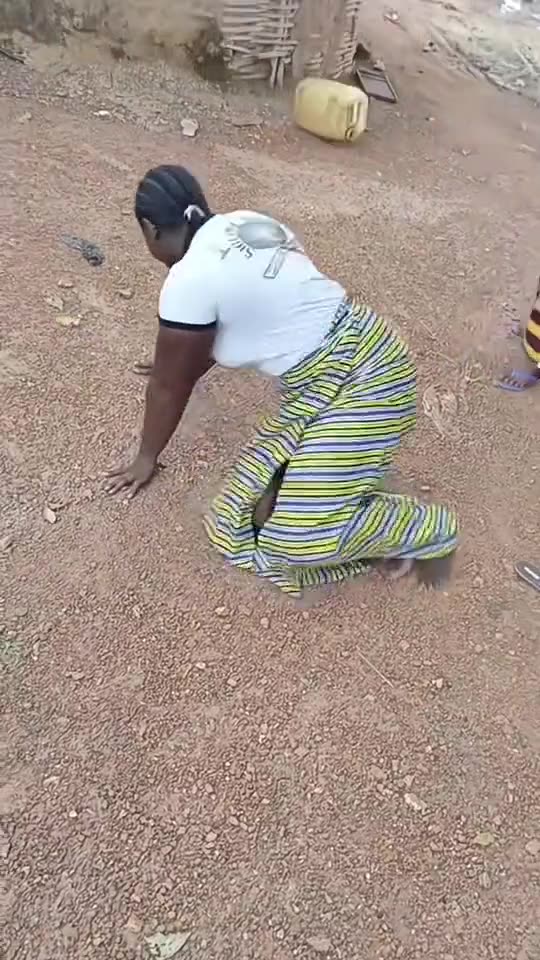
Clip: videosi.io, a public demo of the 2026 grey-blur look, shown with credit. Oraclip's page generates a one-person clip from your photo, with walk, spin and dance as the three moves.
Oraclip's page is its own AI version of the trend, made from your photo. It is not the CapCut template, and Oraclip is not affiliated with CapCut, TikTok or the creators whose clips appear here.
The same drop, three different entries
On Photogenic Filter AI the 5-second scene is fixed. You move in full colour for the first beats, then the frame drains to grey, a radial blur bursts out and every motion leaves a ghost trail, with the face kept sharp. That drop is the recognisable part of the 2026 trend. The move you pick only changes what happens before and through it.
If you still need the upload-and-generate walkthrough, start with how to make a Photogenic Filter video. Photo choice is covered in Photogenic Filter photo tips. The ideas below assume you already have one clear full-body photo of an adult.
Walk to the camera
This is the default, and it is the closest to the classic “here I come” version of the trend. You walk toward the lens with a relaxed smile; after the drop, every step leaves a ghost trail.
It is the most straightforward idea if:
- You want the clip to be instantly readable in a feed.
- Your photo already looks like a standing, full-body portrait.
- You are making a first test and do not want to spend the render on a more athletic spin.
Scene details that fit the walk are places you would actually approach: a city street at night, a beach at sunset, a quiet hallway, a park path. Keep the optional detail to a short phrase. The walk should still feel like a walk, not a new sport.
Outfit-wise, the walk is kind to almost anything in the photo: a coat, a dress, sneakers, a suit. Because the camera is in front of you, logos and necklines stay visible after the frame goes grey.
Spin and look back
The spin is a single turn with a hair flip. The grey blur hits mid-turn, and you look back over your shoulder. It has more motion than the walk, so the ghost trail has more to do.
This idea works best when:
- Your hair is down and visible in the photo, because the flip is part of the move.
- You want a slightly more dramatic version of the same drop, without switching to a dance.
- The outfit can take a turn: a coat, a skirt, a loose shirt.
A tight bun or a cap will not suddenly become long hair mid-spin. If the photo is a sharp buzz cut or a short crop, the turn can still look good; it just will not be a hair-flip clip, and that is fine.
Useful optional details for the spin are simple locations with a little space around you: “on a rooftop at dusk”, “in a studio with a plain backdrop”, “on a quiet street”. Avoid packing the detail box with extra action. The move is already a turn.
Short dance
The dance is a shoulder bounce and a side step in colour, then the same groove in slow-motion grey. It is the most playful of the three, and it is the one that feels closest to a music-video beat, which suits the bass drop on the soundtrack.
Reach for this idea when:
- You want the clip to feel like a hook, not a walk-up.
- Your photo already has a bit of attitude in the pose or the outfit.
- You plan to post the clip with a track you choose at publish time.
The generator's music is Oraclip's own; the CapCut template's sound is not used. You can still pick a sound from the app's library when you post. The dance is short on purpose: five seconds, not a choreography tutorial.
Clip: @biancavforro_ on TikTok, shown with credit. An older black-and-white flash with a small, sharp motion — the kind of energy the short-dance move is going for, in the 2026 grey-blur style.
Scene details worth trying (and ones to skip)
The optional detail field is for one short note about the scene, not a second prompt. Details that usually support the drop:
- A time of day: sunset, night, overcast daylight.
- A simple place: beach, city street, studio, rooftop, hallway.
- A small styling note that is already plausible from the photo, such as a jacket you are already wearing.
Details that usually fight the 5-second scene:
- A paragraph of lore or a list of camera moves.
- A request for two people, a pet, or a child. This page is one adult per clip.
- A demand that the generator copy a specific CapCut template or song.
If a detail does not show up the way you hoped, generate again with a shorter phrase, or leave the field empty and let the default scene carry the move.
Make a short series, not one perfect take
Because each clip is only 5 seconds, a single post with two or three versions often lands better than one isolated render. A simple series from the same photo:
- Walk to the camera, default scene.
- Spin and look back, same photo, maybe a night-street detail.
- Short dance, same photo, posted with a track you pick.
You can also make one clip per outfit if you have more than one full-body photo. What you should not do is try to put two friends in the same frame. The page will not do that; make one clip each and publish them together.
A 5-second clip costs 240 credits at 480p (the default) or 510 credits at 720p with Seedance 2.0 Mini. There is no free preview, and failed renders are refunded automatically. Watch each render before you post it, and say it was made with AI.
Caption ideas
The drop is the punchline, so the caption can stay short. A few starting points, to rewrite in your own words:
- “Naturally photogenic, apparently.”
- “The walk, then the grey.”
- “One photo. One drop.”
- “Spin, then the blur.”
- “I did not film this. I uploaded a photo.”
If you post a series, say which move is which, so people know the walk and the dance are meant to be compared. You do not need a long hashtag block for the idea to read.
Ideas this page will not do
It is worth being plain about the limits, so you do not spend a render on the wrong job:
- It will not apply the filter to a video you already filmed.
- It will not put two or more people in one clip.
- It will not use a photo of a child, or of a public figure.
- It will not add your name as on-screen text.
- It is not the CapCut template, and it does not use that template's sound.
Within those limits, the useful ideas are small: pick the move that matches the photo, add one scene note if you want a place, and generate a clean 5-second vertical clip.
FAQ
Which Photogenic Filter move should I try first?
Start with Walk to the camera if you want the most recognisable version of the trend. Use Spin and look back when your hair is down and you want more motion, and Short dance when you want the clip to feel like a beat.
Can I change the background?
Yes, with a short optional detail such as “on a beach at sunset” or “in a city at night”. Keep it to one phrase. The move and the grey drop stay the same.
Can I combine walk and dance in one clip?
Not in a single 5-second render. Generate each move separately from the same photo and post them as a series.
How many credits does each idea cost?
Each 5-second clip costs 240 credits at 480p or 510 credits at 720p with Seedance 2.0 Mini, whichever move you pick. Failed renders are refunded automatically.
Do I need to write a prompt for these ideas?
No. Pick the move in the generator. The optional detail field is only for one short scene note, and you can leave it empty.
Is this the CapCut Photogenic Filter template?
No. Oraclip generates a new video of the effect from your photo, with its own music. It is not affiliated with CapCut or TikTok.
- How to make a Photogenic Filter video: the complete walkthrough.
- Photogenic Filter photo tips: shots that keep your face sharp.
- Christmas photobooth AI: a four-frame strip if you want a two-person clip instead.
- All trends
Pick a move? Make your Photogenic Filter video.