
How to Make a Photogenic Filter Video: Step-by-Step AI Guide
How to make the Photogenic Filter video from one full-body photo: pick walk, spin or dance, credits, and how to post the 5-second clip.
 Oraclip Team
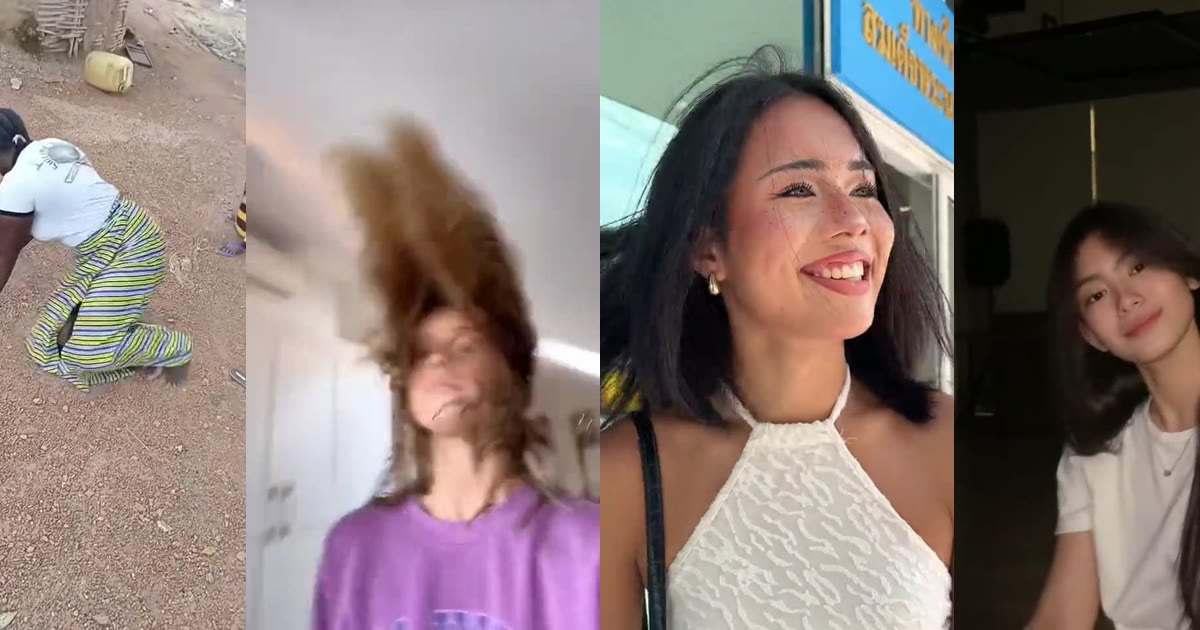
To make a Photogenic Filter video, you need one clear full-body photo, a tool that builds the colour-to-grey drop around it, and about a minute of waiting. This guide walks through the whole process on Oraclip's Photogenic Filter AI page: what the trend looks like, which photo to pick, which of the three moves to choose, what the clip costs, and how to post the 5-second vertical video.
Make it now: Photogenic Filter AI →
Clip: videosi.io, a public demo of the 2026 grey-blur look, shown with credit. Oraclip's page makes a one-person clip from your own photo.
Oraclip's page is its own AI version of the trend, made from your photo. It is not the CapCut template, and Oraclip is not affiliated with CapCut, TikTok or the creators whose clips appear here.
What the Photogenic Filter video is
The Photogenic Filter is a TikTok trend where a normal clip suddenly turns grey or black-and-white, as if to prove how photogenic you are. The version circulating in November 2026 is a CapCut template: someone walks or dances in full colour, and a few seconds in the frame drains to grey, a radial zoom blur bursts out, and each move leaves a ghost trail.
That look grew out of an older photogenic challenge that has been around since 2020, where a flash turns the shot black-and-white mid-clip. The new grey-blur template brought the same joke back with a sharper drop.
Oraclip's page does not apply a filter to a video you already filmed. It generates a new 5-second vertical clip from one photo: you move in colour, the drop hits, and your face stays sharp inside the blur. You do not write a prompt, and you do not need the CapCut template link.
The clip itself is short and easy to recognise in a feed:
- 0–3 seconds: you walk toward the camera, spin or dance in full colour.
- Around 3 seconds: the drop. The frame turns grey and a radial blur bursts out from you.
- 3–5 seconds: slow motion with a ghost trail behind every move, then you look into the lens.
What you need before you start
- One full-body photo of an adult. Head to toe, face clearly visible, in good light. This is the only identity reference the model gets, so a sharp photo matters more than a stylish crop.
- About a minute. You upload, pick a move and a quality, and wait for the render. The 5-second scene is already set.
- Credits for one render. There is no free preview: every render uses credits. Failed renders are refunded automatically. The exact price is shown before you generate.
That is all. You do not need to film a walk-up, find a studio, or paste a long prompt.
Step 1: pick a photo that will still look like you in the blur
The drop is the whole joke, so the face has to stay readable when the frame goes grey. A full-body, front-facing photo in daylight or a bright room is the safest starting point. Wear the clothes you want to see in the clip, and keep heavy filters off the original photo.
Skip close-up selfies that crop the body, group photos (this page makes one person per clip), photos of children or anyone under 18, and photos of celebrities or public figures. If you want friends in the trend, make one clip per person and post them together. For a deeper look at lighting, outfits and crops, see Photogenic Filter photo tips.
Step 2: upload the photo
Open Photogenic Filter AI and upload that one photo. The page asks for a single adult, head to toe, with the face clearly visible. You can change the photo before you generate if you notice a crop or a blurry face.
Only upload a photo of yourself or of an adult who agreed to be in the clip.
Step 3: choose walk, spin or dance
All three moves share the same colour drop, radial blur and ghost trail. The difference is how you enter the shot:
- Walk to the camera is the default and the most recognisable version of the trend: a relaxed walk toward the lens, then the grey trail on every step.
- Spin and look back is a single turn with a hair flip; the grey blur hits mid-turn and you look back over your shoulder.
- Short dance is a shoulder bounce and a side step in colour, then the groove continues in slow-motion grey.
If you are not sure, start with the walk. You can generate the other moves later from the same photo. For scene and outfit ideas that go with each move, see Photogenic Filter video ideas.
Optional: add one detail
There is a short optional field for a scene detail, such as “on a beach at sunset” or “in a city at night”. One short phrase is enough. A long paragraph in that box is more likely to fight the fixed 5-second scene than to improve it.
Step 4: pick a quality and generate
A 5-second clip costs 240 credits at 480p (the default) or 510 credits at 720p with Seedance 2.0 Mini. 480p is the cheaper option and is fine for most feeds; 720p is sharper if you care about hair and fabric after the blur hits. The photo itself is a free input.
There is no free preview: you spend the credits when you press generate. If the render fails, the credits are refunded automatically. The clip arrives as a vertical MP4, 5 seconds long, in 9:16, with a bass drop on the beat. The music is Oraclip's own; the CapCut template's sound is not used.
Step 5: check the clip before you post it
Every render is new, so watch yours before you share it. Check that the face still looks like you after the drop, that the walk, spin or dance feels clean, and that the outfit and hair match the photo you uploaded. If the face softens or a hand looks off, try again with a sharper, brighter full-body photo rather than rewriting a prompt.
When you post, say the clip was made with AI.
Step 6: post it so the drop lands
The 5-second length is already right for a vertical feed. Let the colour hold for the first beat, then let the grey drop do the work. A short caption is enough: the effect is the punchline. If you made more than one move from the same photo, post them as a sequence so people can see the walk next to the spin.
You do not need to import a CapCut template, and you do not need the original sound unless you want to add a track from the app when you publish.
A classic Photogenic Filter example
The grey-blur drop is the 2026 look. The older version of the trend is a mid-shot flash that turns the clip black-and-white. That earlier style is still easy to recognise, and it is what many people still mean when they say “photogenic filter”:
Clip: @millane on TikTok, shown with credit. This is the older black-and-white flash, not the 2026 grey-blur template.
Oraclip's generator is built for the 2026 version: colour first, then a grey radial blur and a ghost trail, with the face kept sharp. The older clips are here only as examples of how the trend began.
Common mistakes
- Uploading a tight selfie. The model needs the whole body to stage a walk, a spin or a short dance. A face-only crop leaves it guessing.
- Using a group photo and hoping everyone appears. This page makes one person per clip.
- Writing a long prompt in the detail field. One short scene note works better than a paragraph.
- Expecting the CapCut template or its sound. This is a separate AI version, generated from a still photo, with its own music.
- Uploading a child's photo. This page is for adults only.
- Skipping the playback check. Watch the clip once. If the face drifts, change the photo and generate again.
FAQ
How do I make a Photogenic Filter video with AI?
Open Photogenic Filter AI, upload one full-body photo of an adult, choose Walk to the camera, Spin and look back or Short dance, and press generate. You get a 5-second vertical MP4 with the colour drop, the radial blur and the ghost trail. No prompt is needed.
Do I need to film a video first?
No. One photo is enough. The whole clip, including the walk, spin or dance, is generated from that photo.
Do I need CapCut or the template link?
No. The CapCut template applies a filter to a video you filmed. Oraclip's page generates a new clip of the effect from your photo, with its own music. It is not the template and is not affiliated with CapCut or TikTok.
How many credits does a Photogenic Filter video cost?
A 5-second clip costs 240 credits at 480p (the default) or 510 credits at 720p with Seedance 2.0 Mini. The photo is a free input, and failed renders are refunded automatically.
Will it still look like me?
Your photo is the identity reference: face, hair, skin tone, body and outfit are read from it, and the face stays sharp inside the blur. A sharp, front-facing, full-body photo matches best. Every render is new, so watch yours before you post it.
Can I put two friends in one clip?
Not on this page: each clip has one person, like the trend. Make one clip per friend and post them together.
Can I use a photo of my kids?
No. The Photogenic Filter AI page is for adults only, and you should only upload photos of adults who agreed.
More photo trends
- Photogenic Filter photo tips: which shots keep your face sharp in the blur.
- Photogenic Filter video ideas: walk, spin and dance ideas, plus scene details.
- Christmas photobooth AI: a sepia four-frame strip from 1–2 photos.
- Car jump AI: another photo-to-video trend from a single shot.
- All trends
Photo ready? Make your Photogenic Filter video.