
How to Make a Santa Nice List Video: Step-by-Step AI Guide
How to make the Santa Nice List video from 1–2 photos: pick the photo, choose pet, duo or you, credits, and how to post the 10-second vertical clip.
 Oraclip Team
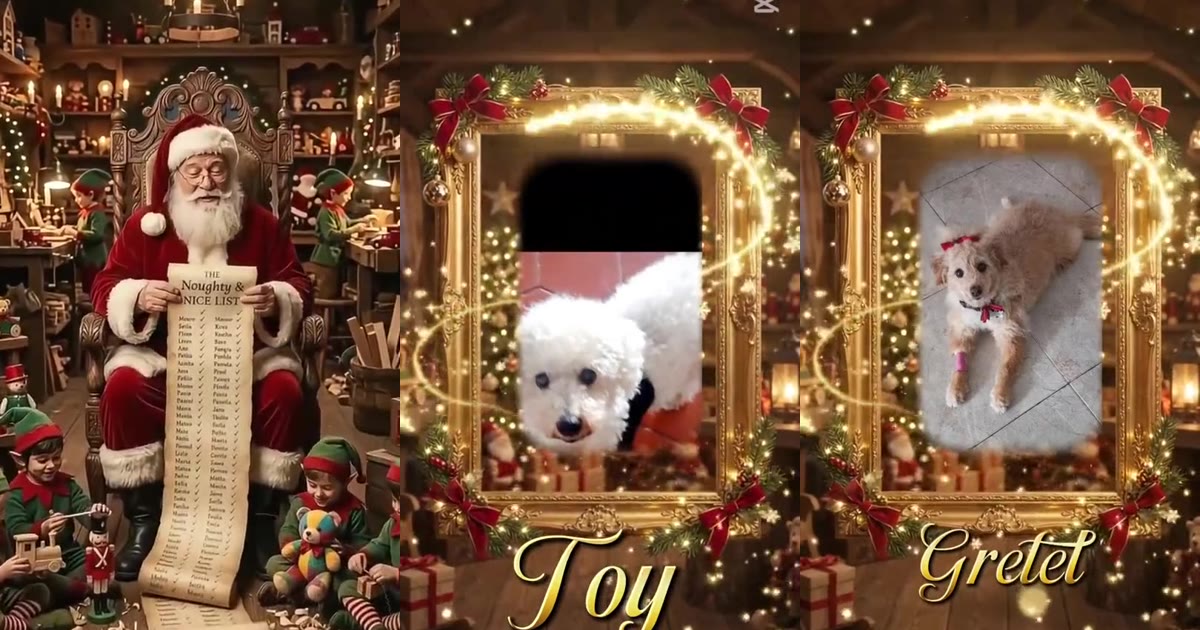
To make a Santa Nice List video, you need one clear photo of the person or pet who "made the list", a tool that builds the scene around it, and about a minute of waiting. This guide walks through the whole process on Oraclip's Santa Nice List AI page: what the trend looks like, which photo to pick, which of the three styles to choose, what the clip costs, and how to post it so people get the joke.
Make it now: Santa Nice List AI →
Clip: @krjxejaig5 on TikTok, shown with credit. It is the CapCut template how-to that helped the trend spread.
Oraclip's page is its own AI version of the trend, made from your photos. It is not the CapCut template, and Oraclip is not affiliated with CapCut, TikTok or the creators whose clips appear here.
What the Santa Nice List video is
The Santa Nice List trend started as a CapCut Christmas template on TikTok in November 2026. The scene is always the same, which is what makes it easy to recognize in a feed:
- Santa sits in a carved armchair in a candle-lit toy workshop, with elves busy in the background.
- He unrolls a scroll so long it spills onto the floor. The top reads "Nice List".
- A gloved finger runs down the names, stops, and Santa nods to the camera.
- Gold sparkles swirl up from the scroll.
- An ornate gold picture frame, trimmed with fir and red bows, appears, and inside it is the person or pet who made the list.
The template's sound was first posted on November 5, 2026. People use it for themselves, their partners, and very often their dogs and cats. The template version drops your photo into a fixed clip. The AI version described here generates a new 10-second clip from your photo instead, so the portrait inside the frame moves: it smiles, waves, blinks or wags.
What you need before you start
- One or two photos. Photo 1 is required and is the star of the frame. Photo 2 is optional and is used for a second face in the duo style.
- An Oraclip account with credits. There is no free preview on this page. The exact price shows before you generate.
- The right subject. Pets and adults only. Do not upload photos of children or of public figures, and only upload photos of adults who agreed to it.
You do not need CapCut, a template link, video editing skills or a written prompt. The workshop, the scroll, the sparkles and the reveal are already built into the page.
Step 1: pick a photo that will read in a small gold frame
The finished portrait sits inside a frame in the second half of a vertical clip, so the face has to be clear at a small size. The model only knows what your subject looks like from the pixels you upload, so the photo matters more than anything else you choose.
Good photos:
- A dog or cat with the whole head, both eyes and the ears visible.
- An adult from the chest up, facing the camera.
- Daylight or a bright room, without a heavy beauty filter.
- One pet or one person per photo, if you are using two photos for a duo.
Photos that tend to disappoint:
- Sunglasses, or a hand, toy or phone covering part of the face.
- Group photos of three or more people.
- A tiny face far away in a landscape shot.
- Old, very dark or heavily compressed screenshots.
If you only have a group photo, crop it to the one face you want before uploading. A tight crop of a sharp photo is better than a full-frame shot where the face takes up a few pixels.
Step 2: upload one or two photos
Open Santa Nice List AI. The generator sits right under the page title.
- Drop your best photo into Photo 1 (your pet or you).
- If you want two faces in the frame, add a second photo to Photo 2 (optional). For the duo style you can also use a single photo that already shows both of you together.
Step 3: choose pet, duo or you
The page has three styles. The scene is identical in all three; only the portrait inside the gold frame changes.
| Style | Who is in the frame | Photos |
|---|---|---|
| Pet on the Nice List | Your dog or cat on a red velvet cushion, tilting its head and blinking; a second pet with photo 2 | 1–2 |
| Duo in the frame | Two side by side: a couple, best friends, or you and your pet | 2, or 1 photo of both |
| Just you | One adult, chest-up, smiling and waving | 1 |
Pet on the Nice List is the default. If you are not sure, start there: pets are one of the most popular versions of this trend and the easiest to share.
Optional: add one detail
There is an optional field for one short detail, such as "a red bow on the collar" or "matching sweaters". Keep it to one idea. It is added to the portrait; it does not change the workshop scene. Leave it empty if the photo already says what you want.
Step 4: pick a quality and generate
The page uses Seedance 2.0 Mini and makes a 10-second, 9:16 vertical clip with Christmas music already added.
- 480p is the default and costs 480 credits.
- 720p is sharper and costs 1,010 credits.
The cost appears before you press generate, and failed renders are refunded automatically. Generation usually takes a short while; keep the page or your library open rather than starting a second job for the same photo. The finished MP4 lands in your library, ready to download.
Step 5: check the clip before you post it
Each render is new, so watch the whole clip once before sharing:
- Likeness. Does the face, fur or markings look like your subject? A sharper, more frontal photo is the fix if not.
- The reveal. The portrait should appear inside the gold frame in the last few seconds, with the only on-screen words being "Nice List" on the scroll.
- Hands and paws. Small details can drift in any AI video. If something is distracting, try once more with a cleaner photo rather than a longer description.
Step 6: post it so the joke lands
The clip has no name written under the frame, on purpose. Put the name in your caption instead, for example "Checked twice. Biscuit made the Nice List 🎅". Say that the video was made with AI, and post it vertically so the frame fills the screen. If you are adding it to TikTok or Reels, the clip already has music, so you can post it as is.
Real Santa Nice List examples
These TikTok posts from the trend show the gold-frame reveal with a pet and with adults. They are shown with credit and a link to each original.
Clip: @babytoy.com on TikTok.
Clip: @krol_26_26 on TikTok.
Common mistakes
- Using a group photo. The frame holds one or two faces. Crop first.
- Expecting a name on screen. The scroll says "Nice List" and nothing else. The name belongs in the caption.
- Writing a long prompt in the detail field. One short detail works better than a paragraph.
- Uploading a child's photo. This page is for adults and pets only.
- Looking for the CapCut template link. This is a separate AI version; there is nothing to import.
FAQ
How do I make a Santa Nice List video with AI?
Open Santa Nice List AI, upload one or two photos, choose Pet on the Nice List, Duo in the frame or Just you, and press generate. You get a 10-second vertical MP4 with the workshop, the scroll, the sparkles and the gold-frame reveal. No prompt is needed.
Do I need CapCut or the template link?
No. The CapCut template places your photo into its own clip. Oraclip's page generates a new clip of the scene from your photo, with its own music. It is not the template and is not affiliated with CapCut or TikTok.
How many credits does a Santa Nice List video cost?
A 10-second clip costs 480 credits at 480p (the default) or 1,010 credits at 720p with Seedance 2.0 Mini. The price shows before you generate, and failed renders are refunded automatically.
Can Santa say my name in the video?
Not on this page: the only on-screen words are "Nice List" on the scroll. If you want Santa to say a name out loud, use the AI Santa video page instead.
Can I use a photo of my kids?
No. The Santa Nice List AI page is for adults and pets only, and you should only upload photos of adults who agreed.
Can I put my dog or cat on the list?
Yes, that is the default style. See how to put your pet on Santa's Nice List for pet photo tips.
More Christmas videos
- AI Christmas video generator: every Christmas template in one place.
- Put your pet on Santa's Nice List: the dog and cat version.
- Santa Nice List video for couples and friends: two faces in one frame.
- Grinch pet AI: turn your pet green for Christmas.
- AI Santa video: Santa says your name.
Photo ready? Make your Santa Nice List video.