
How to Make a Christmas Photobooth Video: Step-by-Step AI Guide
How to make a Christmas photobooth video from 1–2 photos: pick besties, couple or solo, credits, and how to post the 10-second strip.
 Oraclip Team
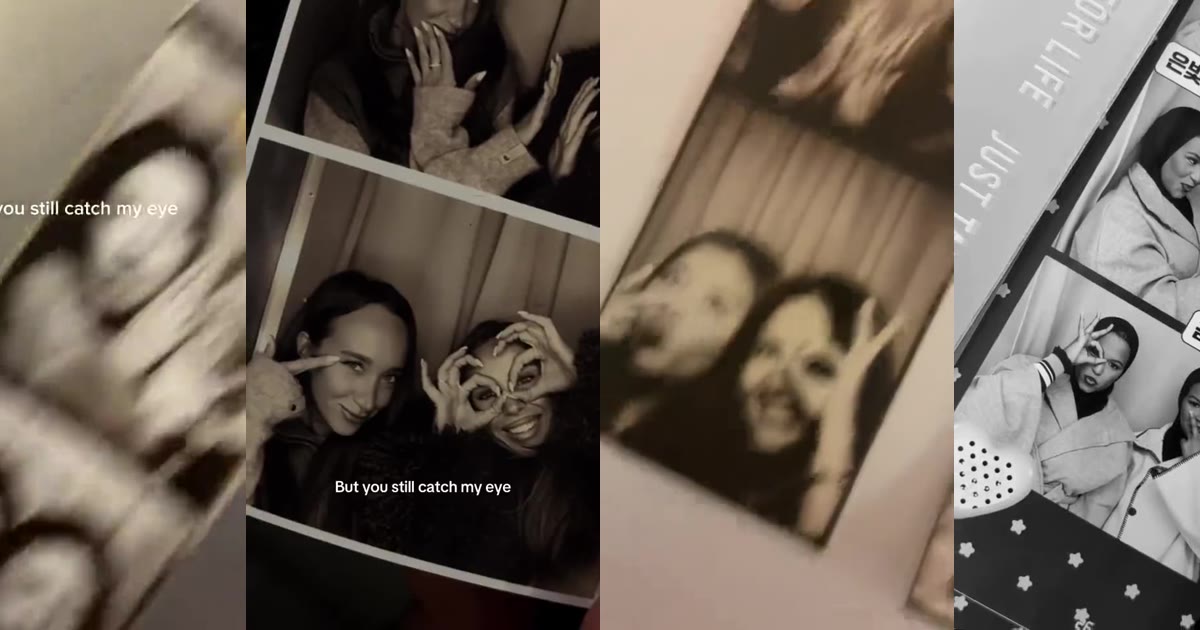
To make a Christmas photobooth video, you need one or two clear photos, a tool that builds a vintage sepia strip around them, and about a minute of waiting. This guide walks through the whole process on Oraclip's Christmas Photobooth AI page: what the trend looks like, which photos to pick, which of the three looks to choose, what the clip costs, and how to post the 10-second vertical video. The page is also one of the tools on the AI Christmas video generator hub.
Make it now: Christmas Photobooth AI →
Clip: @fromliayoon on TikTok, shown with credit. One of the posts that helped the Christmas photobooth strip take off in November 2026.
Oraclip's page is its own AI version of the trend, made from your photos. It is not a CapCut template, and Oraclip is not affiliated with CapCut, TikTok or the creators whose clips appear here.
What the Christmas photobooth video is
The Christmas photobooth trend is a TikTok format that spread in November 2026: two friends or a couple squeeze into a vintage photo booth, and a sepia four-frame strip is shown one frame at a time as the poses play out. Some of the clips that circulated with the trend include on-screen lyric captions; those belong to the original posts, not to the version you generate here.
Oraclip's page makes a video version from your photos, without a booth to find. A vintage sepia strip sits under fairy lights, and each of the four frames comes alive on its flash instead of staying still. You get a 10-second vertical clip in 9:16. You do not write a prompt, and you do not need a template link.
The clip is built as four beats:
- 0–2.5 seconds: flash, frame 1, you lean in and grin.
- 2.5–5 seconds: flash, frame 2, heart hands or foreheads together.
- 5–7.5 seconds: flash, frame 3, a kiss on the cheek.
- 7.5–10 seconds: flash, frame 4, a big laugh, and the strip settles into a still sepia print.
The outfits and the exact poses change with the look you pick. The strip, the lights and the four flashes stay the same.
What you need before you start
- One or two photos of adults. Photo 1 is you. Photo 2 is optional: your best friend or partner. One photo of the two of you side by side also works. For the solo look, one photo is enough.
- About a minute. You upload, pick a look and a quality, and wait for the render. The 10-second scene is already set.
- Credits for one render. There is no free preview: every render uses credits. Failed renders are refunded automatically. The exact price is shown before you generate.
You do not need to find a real photo booth, shoot four poses yourself, or paste a long prompt.
Step 1: pick photos that will read in a small strip
Each frame of a photobooth strip is small, so faces have to be clear. The most reliable inputs are one adult per photo, from the chest up, facing the camera, in daylight or a bright room, with no heavy filter. Hair and glasses should look the way you want them in the strip. A single clear photo of the two of you side by side is also fine.
Skip photos of children or anyone under 18, group photos of three or more, sunglasses or a hand over the face, and photos of celebrities or public figures. Only upload photos of yourself or of adults who agreed to be in the clip.
If you are making the duo version, a little more detail on one photo versus two is in the Christmas photobooth video for couples and friends guide. Pose and outfit ideas for the four frames are in Christmas photobooth pose ideas.
Step 2: upload one or two photos
Open Christmas Photobooth AI and add photo 1. Add photo 2 if you want your best friend or partner in the booth, or upload one photo that already has both of you in it. You can change a photo before you generate if a face is soft or cropped.
Step 3: choose besties, couple or solo
All three looks share the sepia strip, the fairy lights and the four flashes:
- Besties in Santa hats is the default: two friends in soft red Santa hats, with a grin, heart hands, a cheek kiss and a laugh with a wink.
- Couple in sweaters is cosier: knit winter sweaters, a shy smile, foreheads together, a kiss on the cheek, then a hug.
- Just you is one adult in a sweater and Santa hat: a soft smile, a wink with a peace sign, chin on hands and a big laugh.
Pick the look that matches the relationship in the photos. Friends in the couple sweaters, or a couple in the besties hats, will still generate; the outfits and poses will simply follow the look you chose, not the caption you have in mind.
Optional: add one detail
There is a short optional field for a booth detail, such as “reindeer antlers” or “matching red scarves”. One short phrase is enough. A long paragraph is more likely to fight the fixed 10-second scene than to improve it. The strip itself stays clean: there is no name or date printed on the frames. Put those in your caption.
Step 4: pick a quality and generate
A 10-second clip costs 480 credits at 480p (the default) or 1,010 credits at 720p with Seedance 2.0 Mini. 480p is the cheaper option and is fine for most feeds; 720p is sharper if you care about both faces in every frame. The photos themselves are free inputs.
There is no free preview: you spend the credits when you press generate. If the render fails, the credits are refunded automatically. The clip arrives as a vertical MP4, 10 seconds long, in 9:16, with festive music. That music is Oraclip's own. The trend's song is not used; you can pick any sound from the app's library when you post.
Step 5: check the clip before you post it
Every render is new, so watch yours before you share it. Check that both faces still look like the people in the photos, that the two of you never merge into one person, and that the four poses read clearly in the strip. If a face softens, try again with a sharper, more frontal photo rather than rewriting a prompt.
When you post, say the clip was made with AI.
Step 6: post it so the strip reads
The 10-second length already matches a four-flash rhythm. Let each frame land before the next one, and keep the caption short: who is in the booth, and maybe a line about Christmas. If you want names or a date on the memory, put them in the text, not on the strip — this page generates a clean print with no writing.
You do not need a CapCut template, and you do not need the original sound. Some example clips from the trend show burned-in lyric captions; your generated clip will not.
Clip: @gabrielegz on TikTok, shown with credit.
Common mistakes
- Uploading a group of three or more and hoping everyone appears. This page is built for one person or two.
- Using sunglasses or a hand over the face. The strip needs a clear face in every frame.
- Writing a long prompt in the detail field. One short booth note works better than a paragraph.
- Expecting names, a date, or the trend's song on the clip. The strip is clean, and the music is Oraclip's own.
- Uploading a child's photo. This page is for adults only.
- Skipping the playback check. Watch all four flashes. If a face drifts, change the photo and generate again.
FAQ
How do I make a Christmas photobooth video with AI?
Open Christmas Photobooth AI, upload one or two photos, choose Besties in Santa hats, Couple in sweaters or Just you, and press generate. You get a 10-second vertical MP4 of the sepia strip coming alive frame by frame. No prompt is needed.
Do we both need to upload a photo?
Either works. Upload one photo each (photo 1 on the left, photo 2 on the right), or one photo of the two of you side by side. For Just you, one photo is enough.
Do I need a real photo booth or a CapCut template?
No. This page generates a new video of the photobooth strip from your photos, with its own music. It is not a CapCut template and is not affiliated with CapCut or TikTok.
How many credits does a Christmas photobooth video cost?
A 10-second clip costs 480 credits at 480p (the default) or 1,010 credits at 720p with Seedance 2.0 Mini. The photos are free inputs, and failed renders are refunded automatically.
Does it use the song from the trend?
No. The video comes with Oraclip's own festive music, and the trend's song is not used. You can pick any sound from the app's library when you post.
Can I use photos of my kids?
No. The Christmas Photobooth AI page is for adults only, and you should only upload photos of adults who agreed.
Will it still look like us?
Each photo is an identity reference: face, hair, skin tone and age are read from it, and the two of you never merge. Sharp, front-facing photos match best. Every render is new, so watch yours before you post it.
More Christmas videos
- AI Christmas video generator: every Christmas template in one place.
- Christmas photobooth video for couples and friends: the duo looks in more detail.
- Christmas photobooth pose ideas: the four frames, outfits and captions.
- Santa Nice List AI: a gold-frame reveal from 1–2 photos.
- Christmas pajama AI: matching pajamas from one photo.
Photos ready? Make your Christmas photobooth video.